

WhatsApp QR Code Generator
Create a WhatsApp QR code that opens a chat with one quick scan. Add a phone number, a ready-made message, or a group invite link, then style the code so it fits your brand and works wherever customers are ready to start a conversation. It removes the friction between interest and the first message: no typing numbers by hand, no searching for contacts, and no extra steps.


What is a WhatsApp QR code?
A WhatsApp QR code is a scannable code that opens a chat with a specific phone number or sends people to a WhatsApp group invite. In most cases, it works through a dedicated WhatsApp link: the user scans the code, lands in the chat, and can message you right away. If you add a prefilled message, it appears in the message field, while the user still chooses whether to send it.
Its main value is removing the small steps that slow people down before they contact you. Without a QR code, someone has to notice the number, copy it correctly, open WhatsApp, find the contact, or start a new chat. Many people drop off at exactly that point, even when they are already interested.
The QR code shortens that path. A customer sees your offer on a storefront, package, menu, flyer, stand, or presentation and can move straight into a chat. For a business, that means a better chance of receiving the question while the customer is still ready to act.
This type of code is especially useful when a quick conversation matters more than a long form. It works well for questions about price, availability, booking times, service terms, or order details. It does not replace your website, CRM, or lead form, but it gives people a fast entry point into a real conversation.


Practical ways to use it
A chat request with a prefilled message
One of the most useful setups is a QR code that opens a chat with a message already prepared. The customer does not start with an empty field; they see a clear prompt about a consultation, quote, booking, or support request. They can edit the message and send it manually.
For a business, this makes incoming conversations easier to understand. If the code belongs to a specific location, campaign, or offer, the prefilled text can carry that context from the first message. It becomes clearer what the customer wants and where the request came from.
QR code on product packaging or tags
A QR code on packaging, a tag, or a sticker helps customers ask a question while they are already interacting with the product. They do not need to search for contact details or move through several pages. They scan the code and ask about availability, specifications, repeat orders, or delivery details.
This scenario also works after the purchase. If the customer keeps the packaging or instruction sheet, they can return to the chat through the same code later. They do not have to find the contact again when a question comes up.
Post-purchase support
After buying, customers often have small but important questions. Calling is not always convenient, and looking for an email address or support form takes time. A WhatsApp QR code on a receipt, manual, box, or service card makes that route much shorter.
The prefilled message can also show that the chat is about support. For example, the customer can open a chat with text that mentions an order or service issue. Your team gets better context, and the customer starts the conversation faster.
Bookings and questions inside a venue
For venues that take bookings or orders by message, a QR code can become a visible, convenient doorway into chat. Add it to a menu, counter, package, table tent, or information sign. A visitor sees the code and moves straight to the next action.
This works well when the customer is already making a choice. They are reading the menu, looking at an offer, or standing near the entrance, and they can message you without searching. If different locations use separate codes, you can compare their performance by scan activity.
Communication during events
At events, people often need quick answers. A WhatsApp QR code on a badge, program, ticket, or booth gives attendees a simple way to reach the organizers. It reduces communication noise and helps your team answer common questions faster.
Events can also use a group scenario. The code may lead to a group for attendees, volunteers, or the team. In that case, keep the invite link current, because a reset or revoked invite can make the old QR code stop working.
Contact point for experts and consultants
Experts, consultants, and creators can use a WhatsApp QR code in presentations, business cards, webinar materials, or in-person meetings. When someone is interested in a service, scanning a code is easier than looking up the contact later. It is especially useful after talks, consulting materials, or networking conversations.
A prefilled message makes the first step feel easier. Instead of an empty chat, the user sees a line about a consultation, collaboration, or pricing question. That lowers the barrier and makes the outreach feel more natural.
How it works: create it step by step
Step 1. Choose the scenario
Start by deciding what should open after the scan: a direct chat or a group invite. For sales, consultations, bookings, and support, a direct chat is usually the better fit. For communities, events, or learning groups, an invite link often makes more sense.
This choice defines the data format. A direct chat needs a phone number, while a group needs the full invite link. That way, the user lands in the exact WhatsApp scenario you intended.
Step 2. Enter the number or link
For a direct chat, enter the phone number in international format. It should include the country code and digits only, without a plus sign, spaces, brackets, or dashes. If someone pastes a familiar local format, the generator should clean it up or show what needs to be corrected.
For a group, paste the WhatsApp invite link. It needs to be the actual invitation URL with the invite code, not the group name or description. If that link changes later, a dynamic QR code lets you update the destination without reprinting the code.
Step 3. Add a prefilled message
A prefilled message is optional, but it is often one of the most helpful fields. It helps the user start the conversation faster. You can prepare text for a consultation, booking, support request, or price question.
The message is not sent automatically. It only appears in the input field, and the user still taps send. Keep the text natural, short, and easy to understand.
Step 4. Customize the QR code design
After entering the data, adjust the look of the code. You can align it with your brand style so it feels intentional on your materials instead of looking like a random add-on. This is useful for packaging, menus, storefronts, presentations, stands, and advertising.
It is also worth adding a simple call to action next to the code. For example: "Message us on WhatsApp", "Ask about availability", or "Book via WhatsApp". Users should immediately understand what will open after the scan.
Step 5. Test the result
Before publishing, test the QR code. It should open the correct chat, the correct prefilled message, or the current group invite. This check shows right away whether the code leads to the chat, message, or group link you expect.
If the code will stay in use for a long time, choose a dynamic format. You will be able to change the destination without replacing the printed code. With analytics, you can also see how often it is scanned across different touchpoints.
Technical details and common mistakes
A WhatsApp QR code usually stores an HTTPS link that opens either a chat or a group invite. For a direct chat, the link uses a phone number in international format. For a message, the text is encoded so it appears correctly in the input field after the chat opens.
The most common mistake is an incorrectly formatted phone number. It should not include a plus sign, spaces, brackets, dashes, or a local format without the country code. If the number is wrong, the link may fail to open the right chat or behave inconsistently.
Another common mistake is expecting the message to send by itself. WhatsApp only fills in the text. The user sees it, can edit it, and then sends it manually.
For group QR codes, the invite link has to stay valid. If an admin resets or revokes it, the old code may stop leading to the group. A dynamic QR code helps you fix that quickly without replacing the code itself.
Always test the QR code on a real device before using it. It should open the correct chat, message, or active group invite. This is especially important for printed or distributed materials that are hard to update quickly.
Create your WhatsApp QR code and confirm that it opens the right chat, message, or group invite before you publish it.
Compatibility and limitations
A WhatsApp QR code works best when the user's phone has an internet connection and WhatsApp is installed. In that case, the chat usually opens directly in the app after the scan. If the app is not installed, the user may be sent through a browser or another intermediate flow.
Treat this code as a connected experience, not a fully offline one. The QR itself can be recognized without internet, but a WhatsApp chat will not work properly without a network connection. To send a message or join a group, the user needs connectivity.
It also helps to separate the scan from the final action. Analytics can show that the QR code was scanned, but the conversation happens inside WhatsApp. Scan data is useful for judging materials and campaigns, but it does not replace analysis of all sales or conversations.
Think carefully about phone number privacy. If the QR code points to a personal contact, that number becomes visible to everyone who sees the code. For business use, it is better to use a number dedicated to customer communication.
Which links the generator accepts
The generator accepts data that can create a valid WhatsApp destination. The main option is a phone number in international format. It should include the country code and digits only, without a plus sign, spaces, brackets, dashes, or unnecessary leading zeros.
You can also use an existing WhatsApp link for a direct chat. The generator should verify that it is a relevant link that leads to a WhatsApp scenario. If the link does not contain a usable destination or looks invalid, the user should see a clear hint.
WhatsApp group invite links are supported as well. The link must point to a group invitation and include the invite code. A group name, description, or plain text is not enough, because the QR code needs a concrete link.
There is also a prefilled message field. It is optional, but it helps create a better first-contact experience. The generator should handle spaces and special characters automatically so the message appears correctly in the chat.
The smoothest flow is to choose the scenario first: direct chat or group. Then enter the number or link, add a message if needed, and check the preview. This reduces mistakes and makes it clear where the QR code will lead.
Frequently asked questions
Answers to common questions about creating, customizing, and using WhatsApp QR codes.
What opens after someone scans a WhatsApp QR code?
It usually opens a chat with the chosen number or a group invitation. If a prefilled message is added, it appears in the input field. The user can edit the text and send it manually.
Does the message send automatically?
No. The QR code only opens the chat and can insert prepared text. The user always sends the message, so a scan should not be treated as a completed inquiry.
What phone number format should I use?
Use international format: country code and digits only, without a plus sign, spaces, brackets, or dashes. In other words, use the full number with the country code rather than a local format. Before publishing, test that the code opens the correct chat.
Do I need WhatsApp Business?
No, an active WhatsApp account is enough for a direct chat. For business use, however, it is better to use a number dedicated to customer requests so personal and work communication stay separate.
Can I create a QR code for a WhatsApp group?
Yes. Paste the group's invite link. If an admin resets that link later, the old QR code may stop working, so a dynamic code is a better option for groups.
What happens if WhatsApp is not installed?
Behavior depends on the device, browser, and scanning method. The user may be routed to a browser flow or an intermediate page. The best experience is usually when WhatsApp is already installed.
Can I change the number after creating the QR code?
Yes, if the QR code is dynamic. In that case, you can update the number, link, or prefilled message without replacing the code itself. Static codes cannot be changed this way.
Can I track scans?
Yes, scan analytics are available for dynamic QR codes. They help you understand which materials, placements, or campaigns perform better. The actual conversations still happen inside WhatsApp.
How is this different from the QR code inside WhatsApp?
WhatsApp's built-in QR code is useful for basic contact sharing. The generator gives you more control: design customization, dynamic links, a prefilled message, and scan analytics. That is usually more practical for business materials.
Can a WhatsApp QR code replace a website form?
Not always. If you need a quick conversation, a WhatsApp QR code works well. If you need to collect a lot of structured information, a form may be the better choice.
Why might the QR code open the wrong chat?
The most common reasons are an incorrect phone number format, an outdated invite link, or no internet connection. It also depends on whether WhatsApp is installed and how the device opens the link. Test the code before publishing it.
📘 Useful articles from our blog
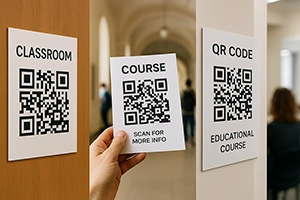
How educational institutions use QR codes for timetables, access to materials, surveys, and assessments.
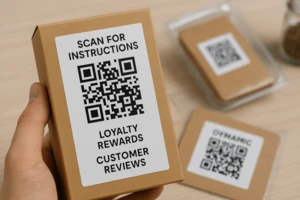
Enabling post-sales communication via QR: instructions, feedback, contests, customer support.
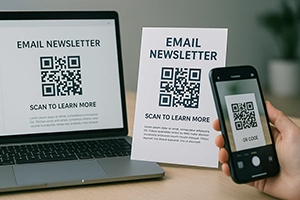
Benefits of QR in email campaigns: how to make website or offer access even easier from mobile.